
Add a Product from the Catalog
The catalog system contains many thousands of products across multiple industries, and while it is n

 October 27, 2026
The Automated Suggested Products feature shows shoppers related items on your online store's Product pages, based on items your customers actually buy together. There's no need to hand-pick suggestions for each product. The system reviews your sales history and builds the suggestions for you, and it keeps them up to date.
Click a link below to jump to a section of this article:
When it's turned on, shoppers see a Customers Also Bought section on each product page. It shows the items most often purchased with the product they're viewing, which encourages them to add more to their order.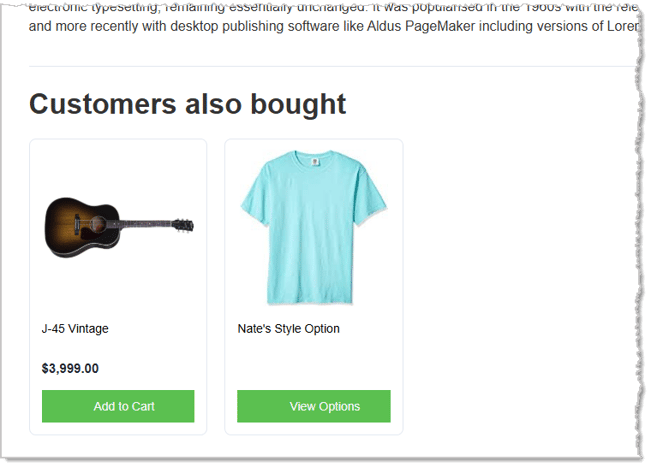
⚠️Important: Turning on Automated Suggested Products replaces any suggested products you've picked by hand. While it's on, your manual suggestions aren't shown on your online store and can't be edited. They aren't deleted, though. Turn the feature off at any time and they come back. See What Happens to Suggestions You Manually Selected for more details.
Suggestions currently appear only on your online store's product pages.
Before You Start: When this feature is on, it replaces the suggested products you've picked by hand for each product.
Products that don't have automated suggestions won't show any suggestions. Your manual suggestions are kept and come back if you turn the feature off. To turn it on:
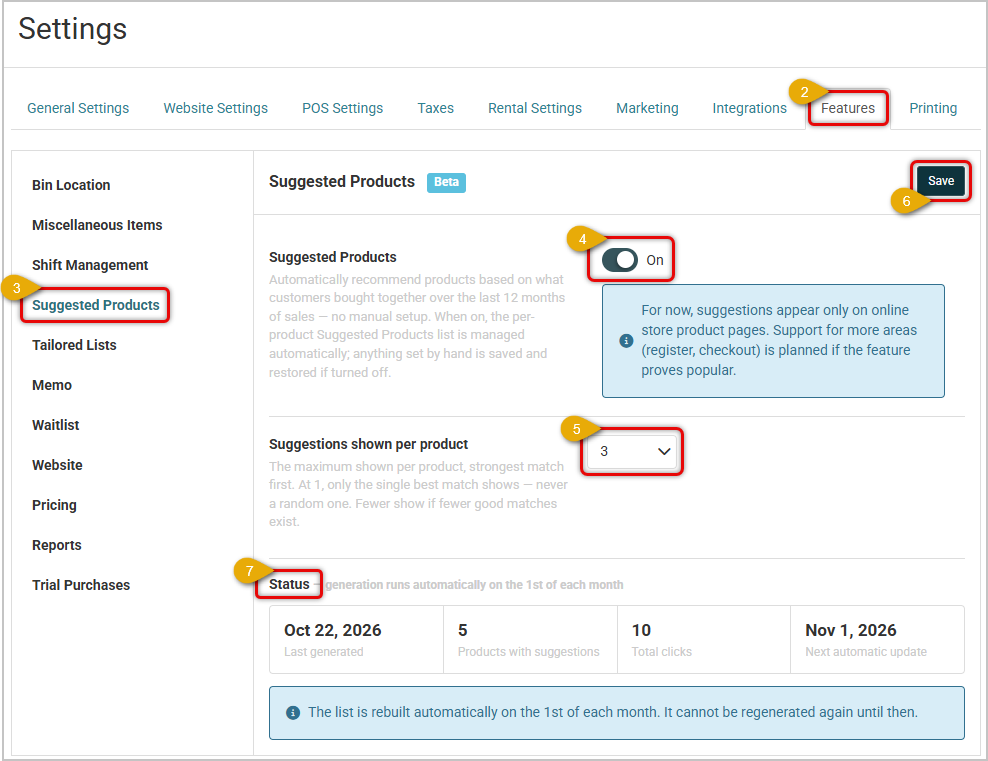
After you turn it on, your first set of suggestions is generated from your sales history. This can take a little while to finish. Until then, the settings page shows Building your first list….
Use the Suggestions Shown Per Product area to set the most suggestions that could appear on a product page, from 1 to 5. The default is 3.
Changes to this setting take effect right away after you click Save.
Suggestions come from your store's sales data:
Suggestions are rebuilt automatically on the 1st of every month, so they stay current with what your customers are buying. They can't be rebuilt manually between monthly updates.
The Status section of the Suggested Products settings page shows how the feature is working.
| Item | What it Means |
| Last Generated | The most recent date Suggestions were generated. |
| Products With Suggestions | How many of your products currently have automated suggestions. |
| Total Clicks | How many times shoppers have clicked on a suggested item. |
| Next Automatic Update | The date the system will rebuild suggestions next. |
If there isn't enough sales history yet to build suggestions, the Status section tells you so. This is common for new or lower-volume stores. As you make more sales, suggestions will appear after a future monthly update.
The Customers Also Bought section appears on product pages in your online store. Each suggestion shows the product image, name and price, including sale prices. Shoppers can click a suggestion to open that product.
Each suggestion also has a button that matches the product:
| Button | When It Appears |
| Add to Cart | The product is in stock and can be added to the cart directly. |
| View Options | The shopper needs to make a choice first, such as a size or color. |
| View Product | The product can't be purchased online. |
| Add to Waitlist | The product is out of stock, and your store offers waitlists. |
| Out of Stock | The product is currently unavailable. |
If your online store is set to hide out-of-stock items, out-of-stock products won't be shown as suggestions. The section adjusts automatically for desktop, tablet and mobile screens.
Without this feature, you can manually pick suggested products for each item in the Suggested Products section of the product's Website settings.
Why would a product NOT have any suggestions?
The product may not have been bought together with other items often enough in the last 12 months, or it may not be available on your online store. Suggestions are checked again at each monthly update.
I just turned it on. Why don't I see suggestions yet?
Your first set of suggestions can take a little while to build. If the status section says there isn't enough sales history, suggestions will appear after a future monthly update as you make more sales.
Will turning this on remove the suggested products I already set up?
No, but they won't display while the feature is on. They aren't deleted, but they're turned off while this feature is active. Your online store shows automated suggestions instead. If you turn the feature off, your hand-picked suggestions are restored.
Can I use my own suggestions for some products and automated ones for others?
No. When the feature is on, it applies to all products. It's either automated suggestions everywhere or your manual suggestions everywhere. While it's on, a product that doesn't have automated suggestions shows no suggestions, even if you picked some by hand.
Can I choose which products are suggested?
Not while Automated Suggested Products is on, because suggestions are based entirely on your sales. To pick suggestions yourself, turn the feature off. Your earlier hand-picked suggestions will be restored.
If I turn it off and back on, will suggestions be rebuilt?
Suggestions are built at most once per month. If you turn the feature back on in the same month, your existing suggestions are used, and the next rebuild happens on the first day of the following month.
Do suggestions appear in the register or at checkout?
Not at this time. Suggestions currently appear only on product pages in your online store.
Is this page helpful?
×Help us improve our articles